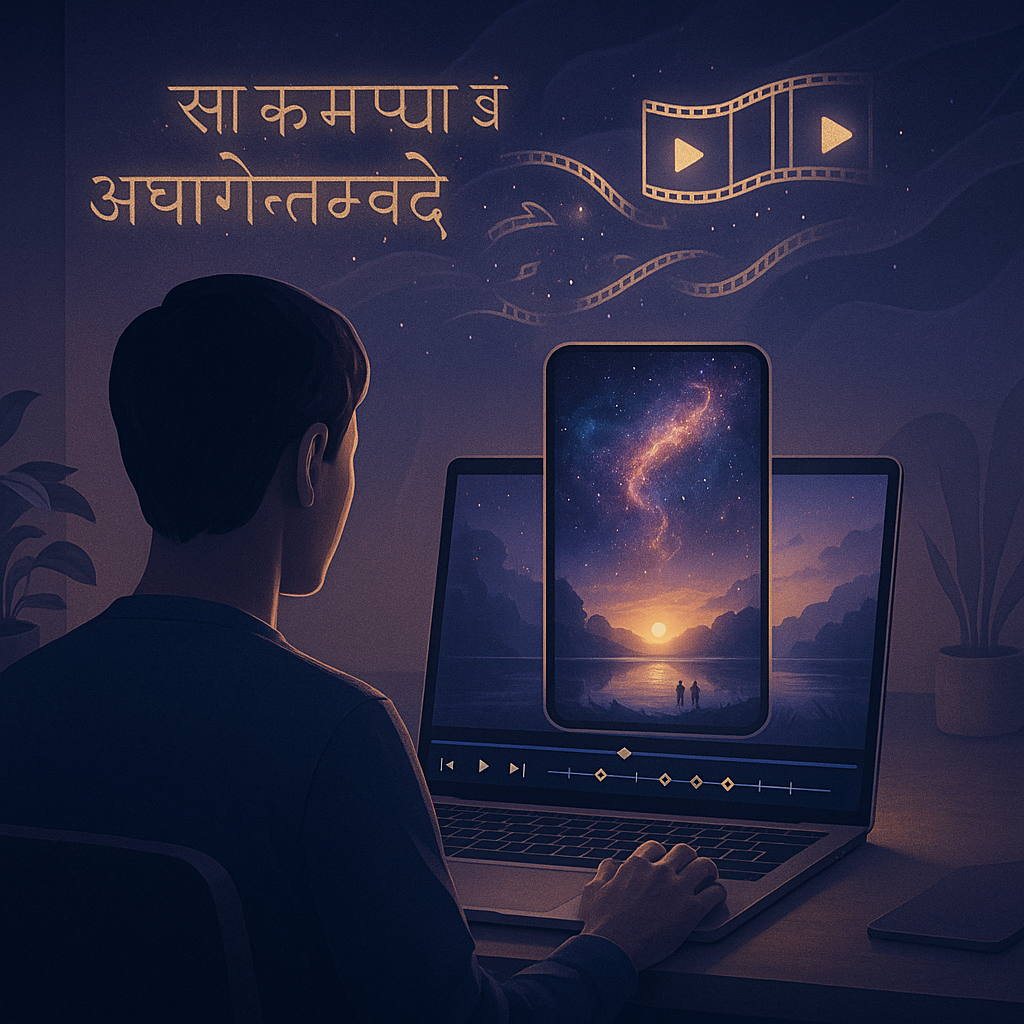
In this guide I document my complete Sora AI Bhagavad Gita video creation workflow with Shotcut:
starting from a single verse of the Bhagavad Gita, turning it into a cinematic
text‑to‑video prompt for Sora AI, and then finishing the piece in Shotcut with
smooth, scrolling kinetic text.
If you are looking for a practical, step‑by‑step Sora API tutorial for beginners aimed at
spiritual and educational content, this post walks through everything I did.
The focus is on creating Bhagavad Gita videos with AI for short‑form social media:
12‑second, meditative clips that can work as Reels, Shorts, or
simple explainer snippets.
Final Bhagavad Gita AI Video (Sora + Shotcut)
AI Workflow Overview: From Scripture to Short-Form Video
Here is the overall pipeline I followed to use Sora AI for video creation and then refine
the result with open‑source video editing software:
- Select a Bhagavad Gita verse and understand its meaning.
- Ask an OpenAI model to help design a cinematic, Sora‑style prompt.
- Use the Sora API / playground to generate several short clips (8s and 12s).
- Pick the best Sora output and import it into Shotcut.
- Add scrolling kinetic text in Shotcut so the message is clearly readable.
- Export a final, polished short‑form spiritual video ready for social media.
Below is the conceptual flowchart I used to plan the phrase integration and blog structure:

Step 1 – How to Use Sora AI for Video Creation from a Bhagavad Gita Verse
Choosing the Verse: Bhagavad Gita 2.28
I started with a screenshot from the Bhagavad Gita (Chapter 2) containing verse 2.28:
“अव्यक्तादीनि भूतानि व्यक्तमध्यानि भारत।
अव्यक्तनिधनान्येव तत्र का परिदेवना॥”
In summary, the verse teaches:
- All beings are unmanifest before birth.
- They become manifest for a short middle period as a physical body.
- After death they again become unmanifest.
- Once we understand this cycle, excessive grief over death is not reasonable.
My goal was to create animated scripture video examples where the visuals mirror this
teaching without narration, only imagery and subtle on‑screen text.
Prompt 1 – Turning the Verse into a Sora‑Style Cinematic Prompt
Using the screenshot of the verse, I asked an OpenAI model to design a Sora‑ready,
text‑to‑video prompt.
Here is the core prompt it produced (for an 8–12 second clip):
A contemplative, cinematic montage inspired by Bhagavad Gita 2.28, visualizing the idea that all
beings are unmanifest in the beginning and end, and only briefly manifest in between.

The film opens on deep, dark space, almost completely black, with only a faint nebula slowly
swirling in ultra‑slow motion. Tiny points of light softly appear from the darkness like stars being
born, then dissolve back into shadow.

Cut to a misty dawn over a calm river. From the fog, translucent human silhouettes gradually
materialize into solid, living people: a child running, a mother smiling, an old man watching the
sunrise. Their movements are in slow motion, serene and graceful...

Shot on 35mm film, 4K resolution, slow motion, smooth cinematic camera movements, soft
ambient music with distant, wordless Sanskrit‑style chanting. No text on screen.
Conceptually, this Sora prompt maps each part of the verse:
- Unmanifest beginning – dark space and faint nebula.
- Manifest middle – human figures appearing at dawn and living ordinary moments.
- Unmanifest end – figures dissolving back into light and sky.
- Emotional tone – meditative acceptance rather than sadness, matching “tatra kā paridevanā”.
Prompt 2 & 3 – Explicitly Mapping Video Imagery to the Commentary
Next I asked the model to:
- Explain what it inferred from the Hindi commentary in the screenshot.
- Explain how the Sora prompt maps to that philosophical meaning.
The key insights from the commentary that became visual cues in the video were:
- The Self (आत्मा) is never destroyed; only the body appears and disappears.
- Birth and death are just changes of condition within a larger, unseen reality.
- A wise person therefore does not sink into grief.
To capture the “unseen reality” visually, the prompt used:
- Floating particles of light and shallow depth of field.
- Backgrounds slightly out of focus, hinting at a subtle dimension beyond the visible body.
Prompt 4 – A 12‑Second Version with On‑Screen Text
The next iteration was a 12‑second Sora prompt with on‑screen text that slowly appears
from the bottom. The text summarises the Gita’s teaching:
A contemplative, cinematic 12‑second video inspired by the Bhagavad Gita verse about beings
being unmanifest before birth and after death, and only briefly manifest in between.

At dawn, a calm river and soft golden light. Human figures made of faint light slowly take shape
on the riverbank... The camera slowly tilts up to the glowing sky, which becomes a soft
white‑gold haze and then gently fades to black...

On‑screen text appears line by line, sliding up slowly from the bottom in a clean, elegant serif
font, centered, with soft transparency:

Unseen before birth,
we appear for a moment,
then fade again into the unseen.
Knowing this eternal cycle,
the wise heart releases grief
and rests in peace within.
Each line is meant to glide in over ~2 seconds, staying on screen as the next line arrives, so all
six lines are visible together near the end.
Experimenting with Multiple Sora Clips
Using the prompts above, I generated three Sora AI clips:
- An 8‑second clip without text.
- A 12‑second clip without text.
- A 12‑second clip with auto‑generated text (the text was jumbled and not usable).
To keep full control over text clarity and typography, I decided to treat Sora as the
visual‑only engine and handle all text animation in Shotcut. This gives a more
professional finish and is a free video editing workflow for AI content.
Step 2 – Sora API Integration Tutorial: Generating & Downloading the Clip
This part is a lightweight Sora API integration tutorial aimed at creators who want
to build DIY AI video creation for social media without writing full production code.
The exact OpenAI UI may evolve, but the process is:
- Access Sora
Log into your OpenAI account and open the Sora (text‑to‑video) playground or use the Sora API endpoint. - Attach the reference image (optional)
Upload the screenshot of the Bhagavad Gita verse so Sora has visual context for the mood. - Paste your refined prompt
Use the 12‑second cinematic prompt above (Prompt 4), or customise it for other
AI video ideas for spiritual content such as nursery rhymes, moral stories, or
meditation visuals. - Set duration & quality
Choose 8–12 seconds for short‑form formats like Instagram Reels or YouTube Shorts.
Select high‑quality output (e.g., 4K) if your plan allows it. - Generate and review the clip
Trigger the generation and preview the result.
If needed, tweak the prompt (lighting, camera moves, pacing) until the motion
matches the contemplative tone of the verse. - Download the final video
Export the chosen version as.mp4and save it to your laptop.
This is the file you will bring into Shotcut for editing.
Once you have a clean Sora clip, the next phase is to customize Sora AI videos in post‑production
using open‑source tools.
Step 3 – Adding Scrolling Kinetic Text in Shotcut (Free, Open‑Source)
Now we move into the video editing process tutorial:
how to add kinetic text to videos with Shotcut so that the six lines of text
appear one by one, sliding up from the bottom and stacking in the centre over 12 seconds.
A. Prepare Your Sora Clip
- Make sure your 12‑second Sora video is downloaded as
.mp4. - Keep it somewhere easy to find, such as your Desktop or a “Sora‑Shots” folder.
B. Create a New Shotcut Project & Import the Video
- Open Shotcut (free, open‑source video editing software).
- On the start screen, set a project name and project folder, then click Start.
- Drag your Sora video into Shotcut. It appears in the Playlist and preview window.
- Open the Timeline (
View → Timeline). - Drag the clip from the Playlist onto the Timeline. This creates track V1 with a 12‑second clip.
C. Plan the On‑Screen Text
These are the six lines we want to animate as scrolling text in Shotcut:
- Unseen before birth,
- we appear for a moment,
- then fade again into the unseen.
- Knowing this eternal cycle,
- the wise heart releases grief
- and rests in peace within.
Each line should:
- Start below the frame.
- Slide up gently into place over ~0.5–0.7 seconds.
- Stay fixed there until the end of the 12‑second video.
D. Create Transparent Overlays for Each Line
- Create a 12‑second transparent clip
Go to Open Other → Color…
Set alpha to 0 (completely transparent) and duration to 00:00:12:00.
Click OK, then click + Playlist to save this transparent clip. - Add text tracks
In the Timeline, right‑click near V1 and choose Add Video Track until you have tracks V1–V7:- V1 – Sora background video
- V2–V7 – one overlay track per line of text
- Place the transparent clips
Drag the transparent clip from the Playlist:- To V2, starting at 0s (runs 0–12s).
- To V3, starting at 2s (2–12s).
- To V4, starting at 4s (4–12s).
- To V5, starting at 6s (6–12s).
- To V6, starting at 8s (8–12s).
- To V7, starting at 10s (10–12s).
This timing creates a smooth, staggered build‑up where the six lines appear across the 12 seconds.
E. How to Add Scrolling Text to AI Video in Shotcut
Now we will add the actual text to each overlay clip and animate it so that it
slides up from the bottom – a simple but powerful form of kinetic text.
- Line 1 on V2
- Select the V2 transparent clip.
- Open Filters (
View → Filters) and click + → Video → Text: Simple. - Enter:
Unseen before birth, - Center horizontally; choose a clean serif font, white text, and a size that’s readable on mobile.
- Set the final vertical position slightly above the centre (this will be the resting spot).
- Enable keyframes on the Position/Y control (click the stopwatch icon).
- At the clip start (0s), drag the text off the bottom of the frame.
- Move 0.5–0.7s forward and set the text to its final resting position.
- Line 2 on V3
Repeat the same steps for V3, starting at 2s:- Text:
we appear for a moment, - Final vertical position slightly below line 1.
- Animate from off‑screen bottom at 2s to its resting spot around 2.5–2.7s.
- Text:
- Line 3 on V4
- Clip start: 4s.
- Text:
then fade again into the unseen. - Final vertical position below line 2.
- Animate up from the bottom over ~0.5–0.7s.
- Line 4 on V5
- Clip start: 6s.
- Text:
Knowing this eternal cycle, - Final vertical position below line 3.
- Line 5 on V6
- Clip start: 8s.
- Text:
the wise heart releases grief - Final vertical position below line 4.
- Line 6 on V7
- Clip start: 10s.
- Text:
and rests in peace within. - Final vertical position as the lowest line in the stacked block, but still in the centre area.
You can optionally add a short Fade In filter (0.3s) to each text clip for an even softer look.
This is a simple but effective way of doing professional video editing techniques for AI content
using only free tools.
F. Preview & Export
- Play the video from the beginning and check that every line animates smoothly.
- Ensure the final stack doesn’t cover the most important visuals from Sora.
- Go to Export, pick an H.264 / MP4 preset (e.g., “YouTube”), and export the file.
You now have a polished, short spiritual video for social media:
Sora handles the AI video generation, while Shotcut provides fine control over
the kinetic text and timing.
More Ideas: AI Video Projects for Spiritual and Educational Content
Once you are comfortable with this text‑to‑video AI workflow, you can explore many other
AI video ideas for spiritual content and education:
- Animated spiritual teachings with Sora – short clips explaining other verses from the Bhagavad Gita or Upanishads.
- Children’s moral stories with AI animation – visualise simple dharma stories with gentle narration.
- Nursery rhyme animation using Sora AI – convert rhymes or poems into playful visuals for kids.
- Animated philosophy explainer videos with AI – create abstract, meditative animations for concepts like karma or detachment.
- Short spiritual videos for social media – 8‑ to 15‑second clips with one verse, one idea, and one clean visual metaphor.
All of these can be built with the same stack:
OpenAI Sora for visuals plus Shotcut for editing, kinetic text, and
final export to platforms like YouTube, Instagram, and TikTok.
Internal Links – Exploring the Bhagavad Gita with AI
If you enjoyed this tutorial on creating Bhagavad Gita videos with AI, you may also like
these related posts where I explore spiritual texts with different OpenAI tools:
Exploring the vision capability of the OpenAI Chat API for spiritual texts
– using vision models to read and interpret scripture screenshots.
AI meets ancient texts: a new era in software development with spiritual datasets
Easy interactions with the ancient wisdom of the Bhagavad Gita
– building simple interfaces over Gita commentaries.
Exploring the Bhagavad Gita with OpenAI APIs
– question‑answer flows and summaries.
Bhagavad Gita exploration with AI tools
– an overview of my broader Gita + AI experiments.
Conclusion & Takeaways
By combining Sora AI video generation with a free, open‑source editor like Shotcut,
you can build a complete, low‑cost pipeline for:
- Turning verses from the Bhagavad Gita into short, cinematic videos.
- Overlaying clear, meaningful kinetic text summarising the teaching.
- Publishing high‑quality short‑form spiritual content on any social platform.
This DIY AI video creation for social media approach keeps you in control of the message,
preserves the subtlety of the original scripture, and showcases how modern AI can help spread
ancient wisdom in a respectful, visually engaging way.





Leave a Reply